Skip to content

Saleshandy n8n community node

Published with provenancePublished with provenancenpm holds a signed attestation linking this release to the exact source commit and CI run that built it, so you can check what you install was built from the code it claims.What provenance means

@nativeship/n8n-nodes-saleshandy

Connect Saleshandy to n8n to find and enrich leads, manage prospects and sequences, reply to email threads, and review outreach analytics.

Install in n8n

Open Settings → Community Nodes → Install and paste this name.

@nativeship/n8n-nodes-saleshandy

n8n Cloud installs only community nodes verified by n8n, so this one needs self-hosted n8n.

What you can do with Saleshandy in n8n

99 operations across 17 resources

Analytics

5 operations

  • Export sent email details — Export sent email details for the selected sequences and date range as a CSV sent to your account email.
  • Get team analytics — Return team performance statistics for the selected users and reporting period.
  • Get email account analytics — Return engagement, sentiment, and performance statistics for the specified email account.
  • Get sequence engagement analytics — Return engagement statistics across the selected sequences and date range.
  • Get sequence analytics — Return prospect and email performance statistics for the specified sequence.

Attachments

1 operation

  • Upload an attachment — Upload a file as multipart/form-data with a file field. Use the returned attachmentId in an email-step variant; use POST /v1/notes/attachments for note files.

Blacklist Domains

1 operation

  • Blacklist domains — Add the supplied domains to the account blacklist.

Clients

3 operations

  • Assign resources to a client — Assign the specified sequences or email accounts to a client.
  • Create a client — Create a client using the supplied name, email, company, and permission details.
  • List clients — List clients with optional search, pagination, and sorting.

Do Not Contact

4 operations

  • Add items to a do-not-contact list — Add the supplied domains or email addresses to a do-not-contact list.
  • Get items in a do-not-contact list — Return items from a do-not-contact list, with optional search and item type filters.
  • Search do-not-contact items — Search for a do-not-contact item across all lists.
  • List do-not-contact lists — List do-not-contact lists with optional search, pagination, and sorting.

Email Accounts

6 operations

  • Connect new sending email accounts SMTP and IMAP — Start an asynchronous email-account connection. The response includes a requestId; poll GET /v1/email-accounts/connect/status/{requestId} for progress and the resulting CSV link.
  • Connect an SMTP/IMAP email account — Connect an SMTP/IMAP sending account. The account is saved even if verification fails; inspect smtpConnection and imapConnection in the response. Status 0 means unverified; 1 means connected. emailServiceProvider is lowercase (zoho, gmail, yahoo, sendgrid, mailgun, ses, or outlook); provide fromName, fromFirstName, and fromLastName.
  • List sending email accounts — List email accounts matching the supplied filters and pagination settings.
  • Check email account connection status — Check the progress of an email-account connection or reconnection and retrieve its CSV result link.
  • Reconnect existing email accounts. — Start an asynchronous reconnection of email accounts. Use the returned requestId with GET /v1/email-accounts/connect/status/{requestId} to check progress and retrieve the CSV link.
  • Update sending accounts in bulk — Update settings for the listed email accounts, including sender details, quotas, signatures, sending intervals, ramp-up, or client assignment.

Enrichment

11 operations

  • Search leads with AI — Run a natural-language search and return the assistant response with up to 25 matching leads or companies when results are found.
  • Add leads to a sequence — Add up to 10,000 lead-finder leads to a sequence step, optionally assigning existing or new tags.
  • Enrich companies — Start company enrichment for up to 100 companies using domains, website URLs, company IDs, or LinkedIn URLs. An optional webhook can receive completion results.
  • Enrich people — Start contact enrichment for up to 100 people using LinkedIn URLs, lead IDs, or name and company details. An optional webhook can receive completion results.
  • Get credit balance and usage — Return the account credit balance and usage summary.
  • Get enrichment results — Return the results of a completed enrichment job.
  • Get enrichment job status — Return the status of a people or company enrichment job.
  • List lead search filters — Return the lead search filters available on the current plan.
  • Get API rate limits — Return the current API rate-limit status for the account.
  • Search companies — Search for companies using the supplied company, location, industry, funding, size, and other filters.
  • Search people — Search for people using the supplied lead, role, location, and company filters.

Fields

3 operations

  • Create a custom field — Creates a new custom field that can be used to store additional information on prospect profiles. Supported field types are Text, Number, Long Text, Currency, Date, and Dropdown.
  • List all fields — List account fields. Set systemFields=true to include built-in fields; omit it or set false to return custom fields only. Each field includes its resolved tags.
  • Update a custom field — Updates the label, fallback text, and/or tags of an existing custom field. Only custom (non-system) fields can be updated. Use the field ID returned by the GET /fields endpoint.

Leads To Email

2 operations

  • Create a domain-based lead workflow — Start a workflow that finds people at the supplied company domains, enriches them, and sends the results to your webhook.
  • Create a leads-to-email workflow — <strong>Content-Type</strong>: <code>multipart/form-data</code> with a <code>file</code> field (the CSV) plus the text fields below. JSON-valued fields (<code>columnMapping</code>, <code>exportColumns</code>, <code>filters</code>) must be sent as stringified JSON.

Notes

3 operations

  • Create a note — Create a note for one prospect with prospectId or for several with prospectIds. The response reports the result for each prospect.
  • Update a note — Updates the content or visibility of an existing note. Only the fields you provide will be changed — any field you omit will remain unchanged. Use the note ID returned when the note was created.
  • Upload an attachment for a note — Upload a note attachment as multipart/form-data with one file field. Files can be up to 20 MB; use the returned attachmentId when creating a note.

Prospects

15 operations

  • Get a prospect attribute value — Retrieve the long-text field value for a prospect attribute using its attribute ID and, optionally, a prospect ID.
  • Check prospect import status — Check the progress of an import started through either prospect-import endpoint. The response includes any import errors as a CSV link.
  • List notes for a prospect — Returns a paginated list of notes attached to the specified prospect, along with any draft note and pagination metadata. Use the <code>skip</code> and <code>take</code> query parameters to page through results.
  • Check email verification status — Return email verification statuses for the submitted addresses.
  • Import prospects — Import prospects from the supplied list. Optionally assign a sequence step, verify email addresses, and choose how to handle existing prospects.
  • Import prospects using field names — Submit an asynchronous prospect import using existing field names. Each request supports up to 100,000 prospects and 90 MB. The response includes a requestId for GET /v1/prospects/import-status/{requestId}; import errors are returned in a CSV file.
  • Update prospect field values — Update one field with fieldId and attributeValue, or update multiple fields with an attributes array of fieldId/value pairs. Use field IDs from GET /v1/fields.
  • Assign tags to prospects — Create or reuse the supplied tags and assign them to prospects identified by ID or email.
  • List prospects — List prospects with search, pagination, sorting, and optional custom fields.
  • List prospect tags — List prospect tags, optionally filtered by tag name.
  • Get a contact sequence history — Return the sequence history for the specified contact.
  • Remove tags from prospects — Remove the specified tags from the identified prospects.
  • Handle a prospect unsubscribe request — Handle a prospect unsubscribe request.
  • Unsubscribe prospects — Unsubscribe the prospects identified in the request.
  • Update prospect statuses — Update the status of the specified prospects. A pause delay applies when the requested status is paused.

Schedules

2 operations

  • Create a schedule — Create a sending schedule using a name, IANA time zone, and per-day timeSlots. Set isDefault=true to assign it automatically to new sequences without a scheduleId.
  • List all schedules — List schedules available to the caller. Use a schedule id when creating or updating a sequence; the default schedule is assigned when no id is supplied.

Sequences

20 operations

  • Add prospects to a sequence step — Add the specified contacts to a step in the sequence.
  • Add accounts to a sequence — Attach the specified email accounts to the sequence.
  • Create a new sequence — Create a sequence with a title and optional sending accounts and schedule. All supplied account and schedule IDs are validated before creation; if validation or account limits fail, no sequence is created. If omitted, the default sending account is attached.
  • Create a new step for a sequence — Add a step to the sequence. Provide a channel, absoluteDays (1-999), and at least one channel-specific variant; email steps allow up to 26 variants, while each day can contain at most one email step. Task-generating steps can include priority and assignee.
  • Add a new variant to an existing step — Append a variant to an existing step. Email steps support up to 26 variants; other channels support one. The payload must match the step channel: email uses subject/content, LinkedIn connection requests use connectionNote, messages use message, and other supported channels use their documented payload.
  • Get sequence settings (optionally filter by code) — Return the sequence settings, assigned schedule, priority distribution, and client. Pass code (1-13) to retrieve one setting.
  • Get sequence step variants — Return the variants configured for the specified sequence step.
  • List all steps and variants for a sequence — Return every step in the sequence, in execution order, each with its variants and their payloads. Useful for exporting a sequence or for inspecting what will be sent.
  • List sequences and steps — List sequences with their steps. Filter by sequence title and paginate or sort the results.
  • Import prospects into a sequence using field names — Submit an asynchronous prospect import into a sequence using existing field names. Each request supports up to 100,000 prospects and 90 MB. Use the returned requestId with GET /v1/prospects/import-status/{requestId}; errors are provided as a CSV link.
  • Remove accounts from a sequence — Remove the specified email accounts from the sequence.
  • Send a sequence test email — Send a test email from an account attached to the sequence using the supplied recipients, subject, and HTML content.
  • List sequence sending accounts — List sending email accounts attached to the specified sequence.
  • Update priority distribution for a sequence — Set the sequence email priority preset: 1 prioritizes follow-ups, 2 prioritizes new prospects, 3 balances steps, and 4 sends up to 80% from the first step. Provide priorityDistributionId.
  • Update prospect outcomes — Set an outcome for the specified prospect emails, optionally limiting the update to a sequence and setting a deal value.
  • Update the schedule assigned to a sequence — Assign a schedule to the sequence by passing its hashed scheduleId. The schedule controls sending days and time windows; use GET /v1/schedules to list available schedules.
  • Update sequence settings and/or schedule — Update only the setting codes supplied; other settings stay unchanged. Code 1 must contain {{link}} unless blank to disable it, and can use an accepted preset or custom HTML. Codes 1 and 2 are mutually exclusive; setting one clears the other.
  • Pause or resume sequences — Pause or resume the selected sequences.
  • Update a step variant for a sequence — Update the <code>payload</code>, <code>status</code>, <code>taskNote</code>, <code>priority</code>, <code>assigneeId</code>, or <code>attachmentIds</code> of an existing variant. The <code>payload</code> shape must match the step's channel (see OpenAPI.md).
  • Start prospect email verification — Start email verification for prospects in the specified sequence.

Subsequences

4 operations

  • Create a new subsequence under a parent sequence — Create a subsequence with a 1-200 character title and at least one trigger condition; conditions use AND logic. A default schedule is used if scheduleId is omitted. firstStepRelativeDays must be at least 1 when set. Add steps after creation using the returned id.
  • Get schedule, entry delay, & trigger conditions — Retrieve the current <code>scheduleId</code>, <code>firstStepRelativeDays</code>, and <code>conditions[]</code> configured on a subsequence. Use after Create Subsequence or Update Subsequence to read the live state.
  • List all subsequences under a parent sequence — List subsequences with progress and engagement metrics. Filter by progress (1 active, 2 paused, 3 finished), title search, or owner IDs.
  • Update the schedule, entry delay, or conditions — Update the schedule, entry delay, or conditions. Omitted fields stay unchanged; conditions replace the full set, and an empty conditions array does not clear them. Read the updated state with GET /v1/sequences/subsequence/{subsequenceId}/settings.

Tasks

12 operations

  • Skip multiple tasks at the same time — Skip up to 100 tasks asynchronously. The response returns a bulkActionId; check GET /v1/tasks/bulk-status/{bulkActionId} for progress and errors.
  • Snooze multiple tasks with snooze duration or Time — Snooze up to 10,000 tasks asynchronously. The response returns a bulkActionId; check GET /v1/tasks/bulk-status/{bulkActionId} for progress and errors.
  • Complete a task — Mark the specified task complete, optionally including a call outcome.
  • Create a task — Create a task for one prospect using prospectId, or create the same task for several prospects using prospectIds. The response reports each prospect result separately, so one failure does not affect the others.
  • List task assignees — List users available to assign to tasks.
  • Get bulk task status — Check the progress of a bulk snooze or skip operation. The response includes error details and a CSV link when applicable.
  • Get task details — Return details for the specified task.
  • Get task counts — Return task counts grouped by status.
  • List tasks — List tasks with filters for status, sequence, assignee, prospect outcome, task type, and call outcome.
  • Skip a task — Skip the specified task.
  • Snooze a task — Snooze the specified task until the supplied time.
  • Update a task note — Update the note on the specified task.

Unibox

1 operation

  • List email reply categories — Returns the list of reply categories used to classify inbound emails in the unified inbox (Unibox). Each category has a unique key, a display name, a sentiment (Positive, Negative, or Neutral), and a flag indicating whether it is a system default category or a custom one.

Unified Inbox

6 operations

  • Get the unread thread count — Return the number of unread email threads.
  • Get an email thread — Return all emails in the specified thread.
  • Get email content — Return the content of the specified email in a thread.
  • List inbox emails — List inbox emails matching the supplied search, category, sentiment, date, owner, and account filters.
  • List inbox outcomes — List inbox outcomes, optionally filtered by category.
  • Reply to an email thread — Send a reply in the specified email thread, with optional CC, BCC, and attachments.

About Saleshandy

The Saleshandy n8n node connects prospecting and outreach activity with your workflows. Use it to manage leads and email sequences, handle inbox replies and tasks, and review campaign performance.
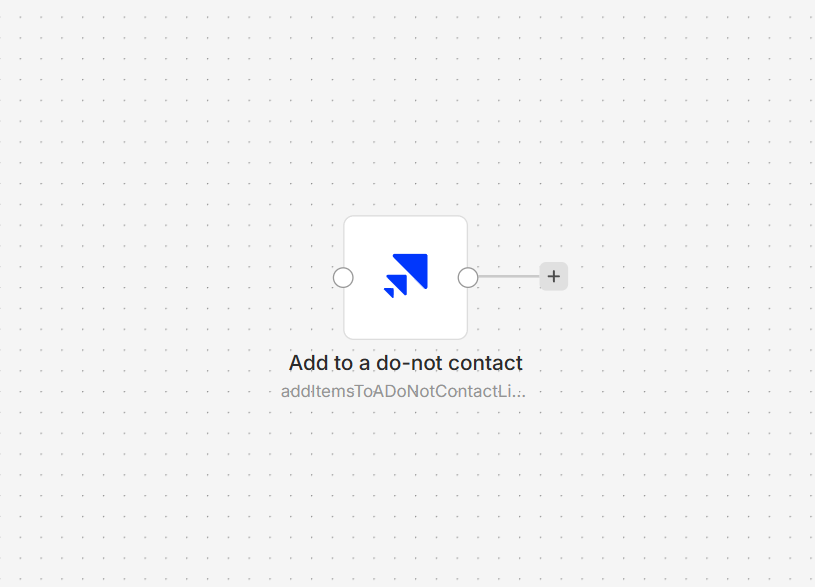
Saleshandy node on an n8n workflow canvas

Connect Saleshandy to n8n

  1. Install @nativeship/n8n-nodes-saleshandy from Settings > Community Nodes in n8n.
  2. In Saleshandy, go to Settings > API Key, create a key, and copy it.
  3. In n8n, create a Saleshandy API credential and paste the key into x-api-key.
  4. In the node's Destination URL field, enter https://open-api.saleshandy.com.
  5. Add the Saleshandy node and choose a resource and action.
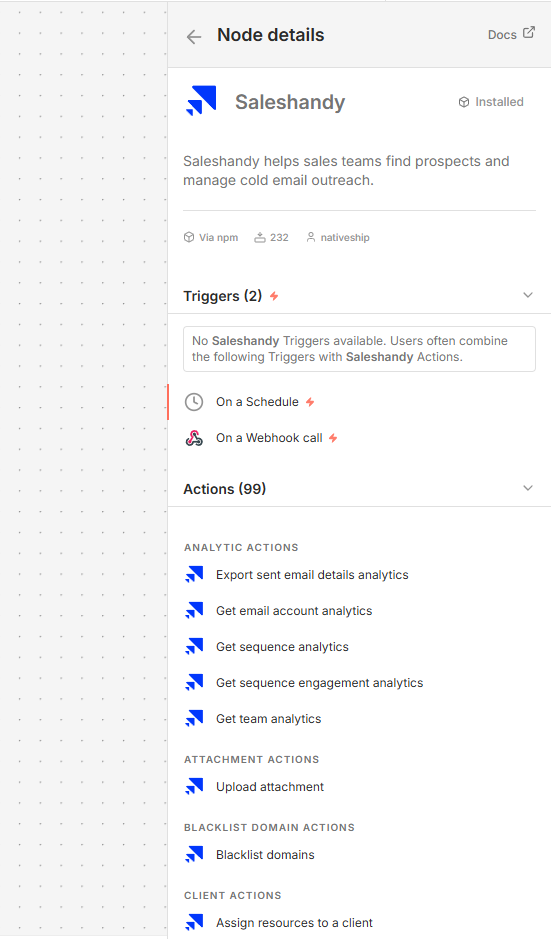
Saleshandy node details in n8n showing prospect, sequence, inbox, task, and analytics actions

What you can do

Search for and enrich people and companies, import or update prospects, assign tags, and add leads to sequences. Create and manage sequence steps and sending accounts, handle email replies and sales tasks, and retrieve sequence, team, and email account analytics.

Built with NativeShip

NativeShip created and manages this Saleshandy node. NativeShip helps SaaS companies launch and maintain verification-ready n8n community nodes. n8n reviews nodes submitted for verification and makes the approval decision.

Want to launch an n8n node for your SaaS? Explore NativeShip.

Saleshandy questions

You can work with prospects, lead enrichment, email sequences, sending accounts, inbox replies, tasks, and outreach analytics.

Yes. The node can import prospects and add them to a sequence or sequence step.

Yes. You can list inbox emails, retrieve a thread or email content, check unread counts, and reply to a thread.

Yes. It can retrieve sequence, team, email account, and consolidated engagement statistics, and export sent email details.

Create a Saleshandy API key and add it to the x-api-key field in the Saleshandy API credential. Set the node's Destination URL to https://open-api.saleshandy.com.

All Sales & Lead Generation nodes
  • ManyReach

    Published with provenancePublished with provenancenpm holds a signed attestation linking this release to the exact source commit and CI run that built it, so you can check what you install was built from the code it claims.What provenance means

    @nativeship/n8n-nodes-manyreach

    Use the ManyReach n8n node to manage email campaigns and prospects, review replies, and work with lists, senders, and campaign stats.

    11 downloads last week
  • SendPilot

    Published with provenancePublished with provenancenpm holds a signed attestation linking this release to the exact source commit and CI run that built it, so you can check what you install was built from the code it claims.What provenance means

    @nativeship/n8n-nodes-sendpilot

    Use the SendPilot n8n node to manage LinkedIn campaigns and leads, read inbox conversations, and send messages from your workflows

    19 downloads last week

Ready to launch your n8n, Make, Zapier or Activepieces integration?

Give your customers another way to use your product.

Get started