Skip to content

Chatbase n8n community node

Published with provenancePublished with provenancenpm holds a signed attestation linking this release to the exact source commit and CI run that built it, so you can check what you install was built from the code it claims.What provenance means

@nativeship/n8n-nodes-chatbase

Use the Chatbase n8n node to chat with AI agents, manage conversations and Helpdesk tickets, update sources, and send WhatsApp template messages.

Install in n8n

Open Settings → Community Nodes → Install and paste this name.

@nativeship/n8n-nodes-chatbase

n8n Cloud installs only community nodes verified by n8n, so this one needs self-hosted n8n.

What you can do with Chatbase in n8n

42 operations across 6 resources

Agents

13 operations

  • Chat with an agent — Send a message to an agent and receive a response. Supports streaming responses when `stream: true` is set in the request body.
  • Clone agent — Clone an agent and its sources, excluding Notion. The clone is independent. Check `pendingSteps` for setup steps that need attention. Plan limits return `AGENT_LIMIT_REACHED` (403).
  • Create agent — Create an agent. If `url` is provided, Chatbase adds it as a link source and starts training. The agent is created even if setup fails; check `pendingSteps` for `ADD_SOURCE` or `TRAIN_AGENT`. No `pendingSteps` means setup succeeded. Plan limits return `AGENT_LIMIT_REACHED` (403).
  • Start a voice session — Start a real-time voice session. Pass response `data` to the Chatbase Voice SDK (`@chatbase-co/voice-sdk`) to connect the client. Requires a plan with voice enabled; voice minutes use message credits. Send {} when no options are needed.
  • Delete agent — Permanently deletes an agent and all its sources. Also disconnects any active integrations (Slack, WhatsApp, etc.). This action is irreversible.
  • Get agent — Returns a single agent by ID.
  • List agents — Returns a paginated list of all agents for the authenticated account.
  • Retry a message — Retry generating an assistant response for a given message. Truncates the conversation at the target message, then re-sends the preceding user message through the chat service.
  • Submit a tool result — Submit the result of a client-side tool call. Use the toolCallId from the tool-call part in the chat response to identify the tool call.
  • Train agent (deprecated) — Deprecated no-op; this endpoint always succeeds without starting training. Sources train automatically after creation, update, or deletion. Check source `status` or the agent `status` to track training.
  • Update agent — Partially updates an agent. Only provided fields are changed.
  • Toggle auto-retrain — Enable or disable automatic retraining every 7 days. Requires an agent that has been trained at least once (`AGENT_NOT_TRAINED`, 409) and a Standard plan or higher (`PLAN_FEATURE_NOT_AVAILABLE`, 403).
  • Update agent styles — Updates the visual styles for an agent.

Conversations

8 operations

  • Export conversations — Export full message histories across all conversation sources. Tool results are sanitized. Supports cursor pagination and filters for `conversationId`, `source`, and `startDate`/`endDate` (created-at window). Set `include=summary` to omit message bodies.
  • Get a conversation — Get conversation metadata and its latest messages. Use its cursor with List Conversation Messages to fetch older messages. This endpoint returns API-created conversations only; use Export Conversations with `conversationId` for widget, WhatsApp, and other sources.
  • List conversation messages — List all messages in a conversation with cursor-based pagination. Messages are returned in chronological order within each page, paginating backward from newest. The cursor from the get-conversation endpoint works here.
  • List conversations — List conversations for an agent, ordered by createdAt date. Supports cursor-based pagination. Pass `startDate` and/or `endDate` to restrict the results to a createdAt window.
  • List conversations for a user — List conversations for a specific user under an agent, ordered by last activity. Supports cursor-based pagination.
  • Search conversations — Searches conversations created since the first of the month 12 months ago (UTC). Text matches are ranked with snippets; without `query`, results sort by activity. Filters use AND across fields and OR for comma-separated values. Results may lag; follow the cursor while `hasMore` is true, including after an empty page. Use Export Conversations with `conversationId` to read messages.
  • Pause or resume a conversation — Pause or resume an ongoing conversation. A paused conversation stops receiving AI replies but still records incoming messages.
  • Update message feedback — Set or clear feedback on an assistant message. Use "positive" or "negative" to set feedback, or null to remove existing feedback.

Health

1 operation

  • Health check — Returns the API health status. No authentication required.

Helpdesk

9 operations

  • Create a ticket — Creates a ticket on behalf of a customer. Unless an assignee is provided, the ticket is auto-assigned via the agent's routing rules.
  • Add a message to a ticket — Posts an agent reply to a ticket on behalf of a team member. Delivery to the customer is asynchronous; a 201 confirms the reply was recorded, not delivered. Posting a reply may transition the ticket status, matching dashboard behavior.
  • Get a ticket — Returns a single ticket by its per-agent ticket number.
  • List teams — Returns the teams configured for an agent, ordered by creation date. Exactly one team is marked as the default for the agent.
  • List ticket messages — Returns a ticket's message thread in chronological order. Supports cursor-based pagination.
  • List ticket statuses — Returns the active (non-archived) ticket statuses configured for an agent, ordered by category then position. Each category has exactly one default status.
  • List tickets — Returns tickets for an agent, sorted by `updatedAt` descending by default. Supports filtering and cursor-based pagination. Filters combine with AND across parameters.
  • Search tickets — Searches ticket messages with a free-text query and returns matching tickets ranked by relevance. Results are capped and not paginated.
  • Update a ticket — Partially updates a ticket's status, assignee, team, or priority. Only provided fields are changed. Fields are validated together but written independently, so a 500 can leave a partial update.

Sources

9 operations

  • Create file source — Upload a file as a knowledge source for an agent. Accepts PDF, DOC, DOCX, and TXT files up to 20 MB. **Base URL:** `https://files.chatbase.co/api/v2` — this endpoint uses a different host from all other Sources endpoints.
  • Create source — Create a text, Q&A, or link source. Use the dedicated endpoint for files; ticket and Notion sources are not supported. Training starts immediately; poll source `status` until `trained` or `failed`. Q&A request bodies must not exceed 4.5 MB.
  • Delete source — Deletes a source. Its knowledge is removed from the agent immediately; the response carries the final state (`deleted`, or `toBeDeleted` while the purge finishes).
  • Get source — Returns a single source by ID.
  • Get sources summary — Returns aggregated counts and sizes for each source type, plus a flag if the chatbot knowledge base requires a retrain to reflect any changes
  • List sources — Returns a paginated list of sources for an agent. Ticket sources are excluded. For link sources only individual or sitemap/crawl parent links are returned with aggregated children metadata.
  • Restore source (deprecated) — **Deprecated.** A delete takes effect immediately — the knowledge is purged right away, so there is no pending state to restore from. The call does nothing and always succeeds. Re-create the source instead.
  • Update file source — Replace a file source's content, rename it, or both. At least one of `name` or `file` must be provided. **Base URL:** `https://files.chatbase.co/api/v2` — this endpoint uses a different host from all other Sources endpoints.
  • Update source — Update a text, Q&A, or link source. Use the dedicated endpoint for files; ticket and Notion sources are not supported. Content changes start retraining (`updated` until live). Link URLs cannot be changed; delete and recreate the source. Q&A request bodies must not exceed 4.5 MB.

WhatsApp

2 operations

  • List WhatsApp templates — List approved templates from the agent's connected WhatsApp Business Accounts. Use a template's `variables` shape when sending and match its `wabaId` to a sender. `complete=false` means one or more accounts could not be read.
  • Send a WhatsApp template message — Send an approved WhatsApp template to a phone number. Chatbase resolves or creates the user from `to`; no user ID is needed, and replies follow the regular WhatsApp flow. The message is appended to the conversation unless a human has taken over or it has ended; see `conversationId`.

About Chatbase

The Chatbase n8n node connects your AI support agents with n8n. Use it to manage agents, handle conversations, work with Helpdesk tickets, and manage the sources connected to your agents.
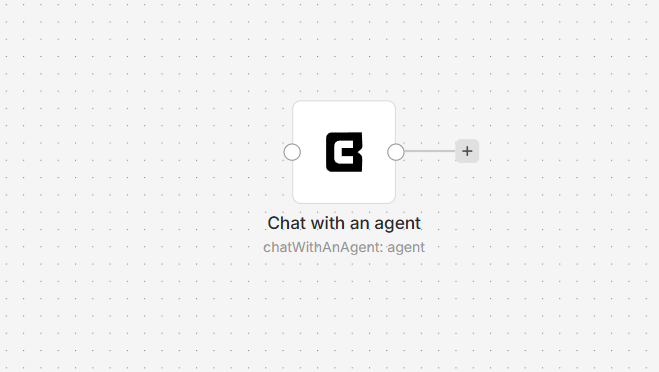
Chatbase node on an n8n workflow canvas

Connect Chatbase to n8n

  1. In n8n, install @nativeship/n8n-nodes-chatbase from Settings > Community Nodes.
  2. Create a Chatbase API credential and enter your Chatbase access token in Access Token. You can create or copy a token from your Chatbase workspace settings.
  3. Add the Chatbase node and choose an agent, conversation, Helpdesk, source, or WhatsApp action.
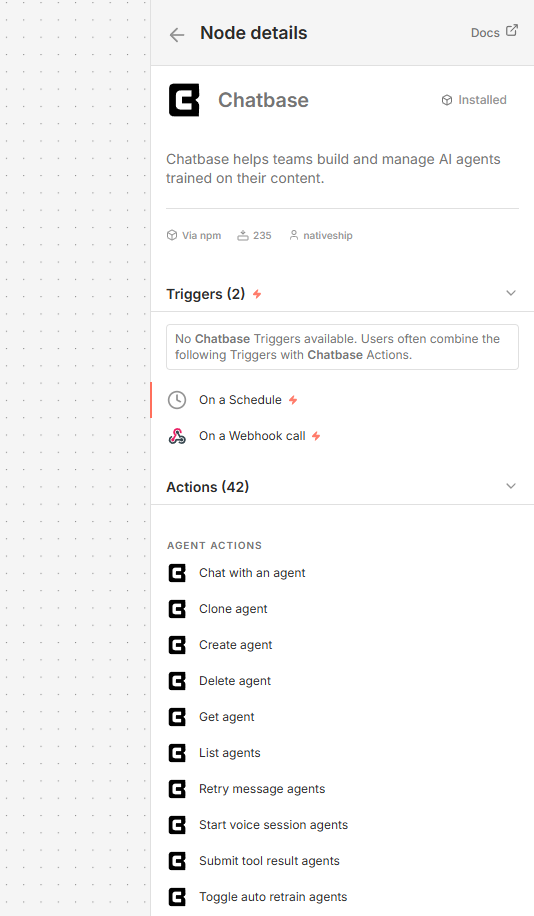
Chatbase node details in n8n showing agent, conversation, Helpdesk, source, and WhatsApp actions

What you can do

Use the node to create, update, list, or retrieve Chatbase agents, and send messages to an agent. You can also search, retrieve, and export conversations; create and manage Helpdesk tickets; and add, update, or list agent sources.

WhatsApp actions let you list message templates and send a template message.

Built with NativeShip

NativeShip created and manages this Chatbase node. NativeShip helps SaaS companies launch and maintain official, verification-ready n8n community nodes in minutes, so customers can use their products directly in n8n.

Want to launch an n8n node for your SaaS? Explore NativeShip.

Chatbase questions

It lets you manage Chatbase agents, send messages to them, work with conversations and Helpdesk tickets, manage agent sources, and use WhatsApp template actions from n8n.

Yes. Choose the agent resource and the Chat With An Agent operation, then select the agent and provide a message.

Yes. The node can search conversations, retrieve conversation details and messages, and export conversations.

Yes. Helpdesk actions include creating, listing, searching, retrieving, and updating tickets, as well as working with ticket messages.

Create a Chatbase API credential in n8n and enter your Chatbase access token in the Access Token field.

Ready to launch your own n8n community node?

Give your customers another way to use your product.

Start building