Create an n8n Community Node from OpenAPI with NativeShip
Before you start
Have these ready:
- An OpenAPI 3 specification for an API you are allowed to use. You can write one from the API owner's documentation or start with an existing specification. Check that its server URL, paths, inputs, authentication, and responses match the API you plan to call.
- Access to the API and a test credential with only the permissions the example operation needs.
- A NativeShip account.
- Company-controlled GitHub and npm accounts if you plan to publish for a company.
- A local or self-hosted n8n environment for testing. For n8n Cloud's verified-node catalog, see the verification section below.
For an introduction to the API-to-node process, see How to Turn an API into an n8n Community Node.
1. Prepare and inspect your OpenAPI specification
Before opening NativeShip, get the specification in JSON or YAML form. If you are creating it yourself, use the API owner's documentation as your source of truth. Do not add endpoints or authentication behavior that the API does not document.
Check the main parts of the document:
- openapi identifies the OpenAPI Specification version.
- info contains the API title and version string.
- servers contains the base URL.
- paths contains the available paths and HTTP methods.
- parameters, request bodies, and responses describe an operation's inputs and response contract.
- security and components.securitySchemes describe authentication requirements.
The 0mcp file declares OpenAPI 3.2.1 and API version 1.0.0. Its relevant section is:
openapi: 3.2.1
info:
  title: 0mcp API
  version: 1.0.0
servers:
  - url: https://datafa.st/api/v1
security:
  - 0mcpBearer: []
paths:
  /analytics/overview:
    get:
      operationId: getAnalyticsOverview
      summary: Get aggregate analytics
2. Create your NativeShip project
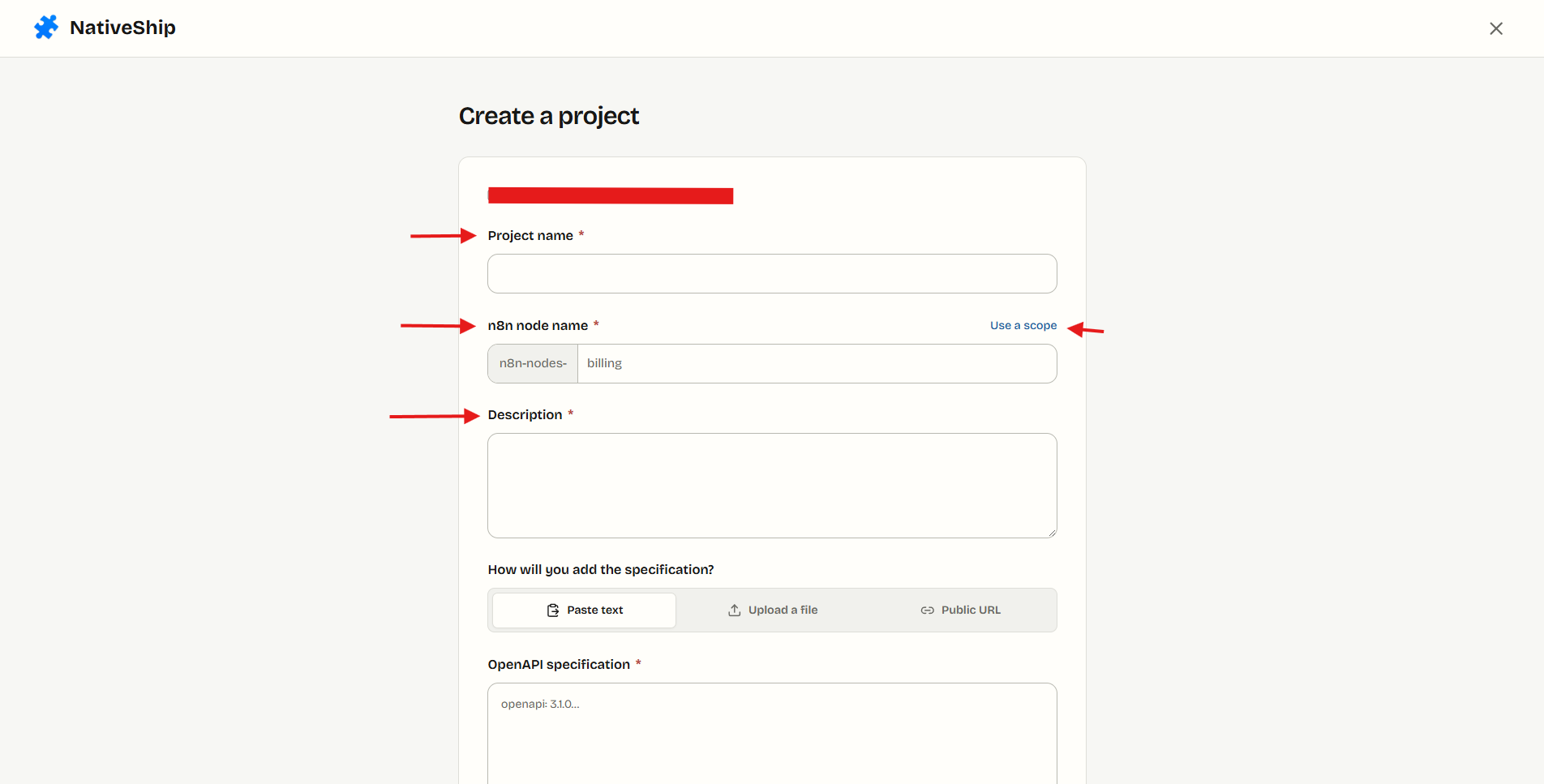
- Sign in to NativeShip and choose Create project.
- Enter a Project name. This is the name you use to identify the project in NativeShip.
- Enter the n8n node name. Choose the npm package name carefully. n8n requires community-node package names to begin with n8n-nodes- or @scope/n8n-nodes-. See the official submission requirements. Examples:
- n8n-nodes-yourservice
- @yourcompany/n8n-nodes-yourservice
- Add a short Description for the project.
- Under How will you add the specification?, choose Upload a file, Paste text, or Public URL. For this example, upload the 0mcp YAML file or paste its contents.
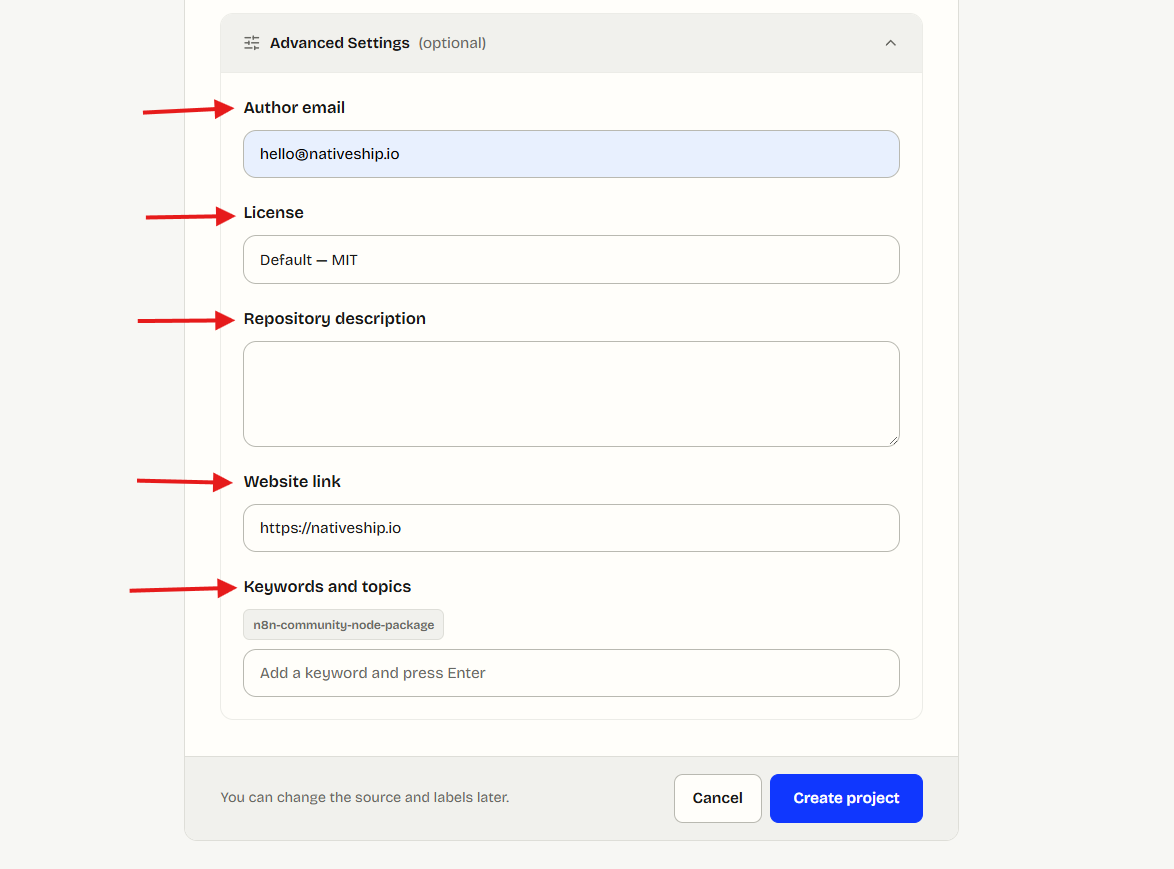
- Open Advanced Settings and review each field:
- Keywords and topics: keep n8n-community-node-package in the package keywords, as required by n8n.
- License: choose the license that matches your package and your rights to use the source material.
- Website link: add the service's official website.
- Repository description: write the description you want associated with the repository.
- Author email: enter a monitored, company-maintained address. NativeShip writes this into the package configuration, so check it before the publishing setup.
- Review the values and select Create project.
The package name, repository details, license, keywords, and author email are easier to check before a first npm release. Use your company accounts and the package name your team intends to maintain.
3. Edit and review the node in NativeShip
After project creation, NativeShip opens the node editor. Make the node clear for the people who will use it in n8n.
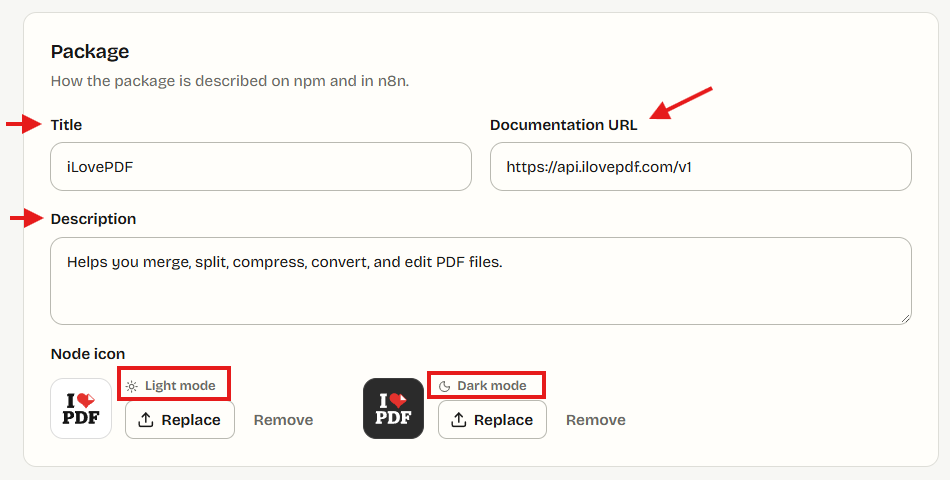
Set the node title, description, and documentation URL
In Node labels, review the package fields:
- Set Title to the name users should see in n8n.
- Write a concise Description that tells users what the node connects to or does.
- Set Documentation URL to the API or service documentation page you want users to open. In n8n, this link appears as Docs near the top of the node panel.
The NativeShip editor keeps the title, description, documentation URL, and icon editable after publication. To ship an edit to npm, save it, build the updated package, and follow the release flow.
Add the node icon
NativeShip accepts a square SVG icon up to 64 KB. n8n recommends SVG icons, supports separate light and dark icons, and calls for a square or near-square aspect ratio in its icon reference. If you leave the dark icon empty, NativeShip uses the light icon for both themes. Check the icon in the preview before saving.
Organize resources and operations
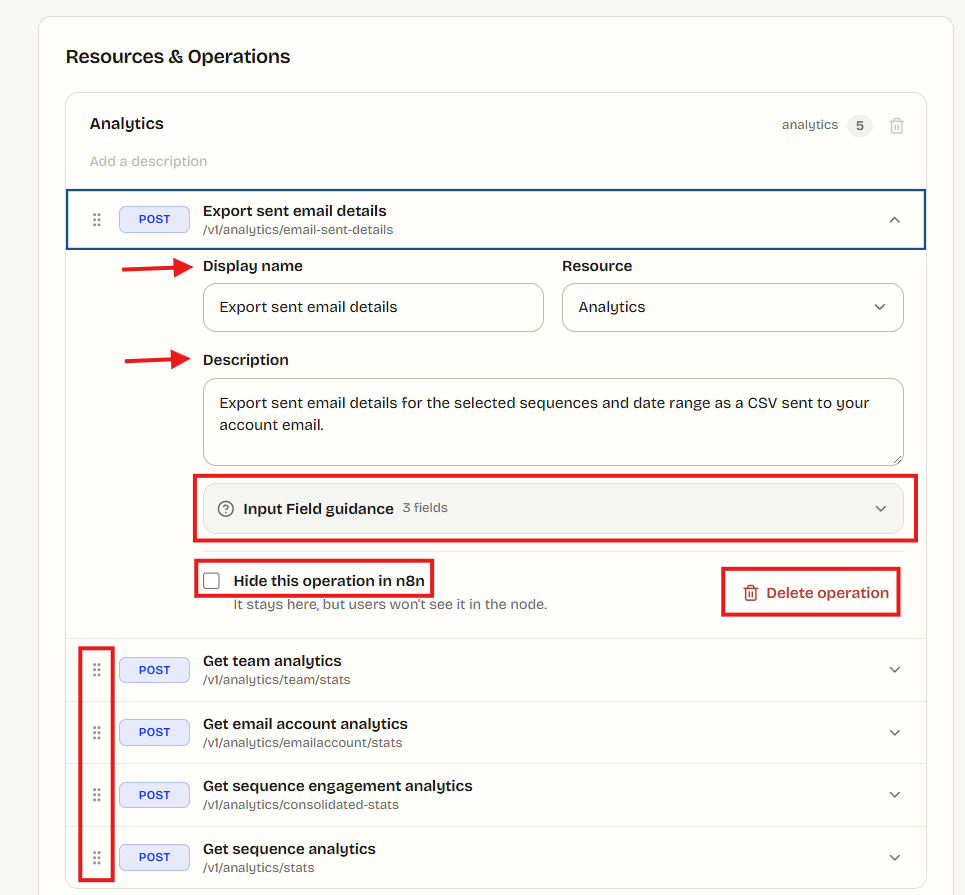
In Resources & Operations:
- Review the resources NativeShip created from the API specification.
- Set a clear display name and description for each resource.
- Expand an operation to review or change its display name, description, resource, and field settings.
- Drag an operation onto another resource if it belongs there.
- Delete an operation you do not want to expose. Use the restore control at the bottom of the list to bring a deleted operation back.
- Create a resource when the API needs a group that is not already listed.
Keep the node focused on the actions its users need. An API may contain far more operations than belong in a practical n8n node.
Improve the input field guidance
Expand Input Field guidance inside an operation to edit field-level help for its inputs. NativeShip provides Tooltip, Placeholder, and Hint controls for each field.
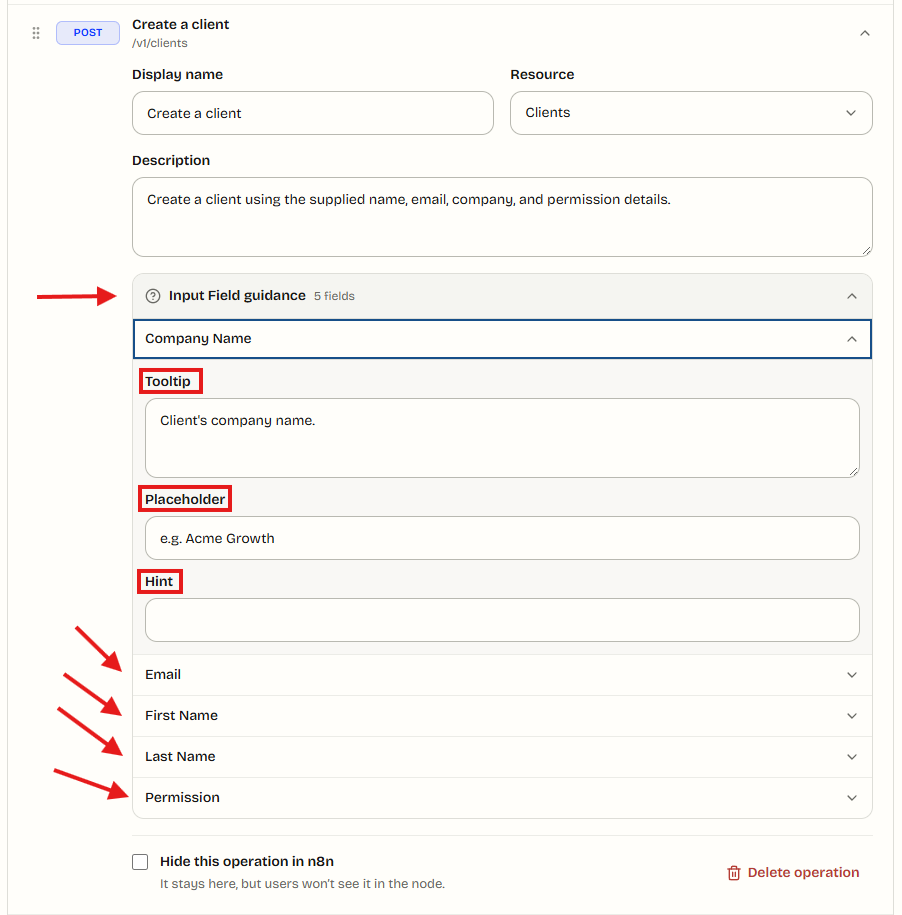
Use these to answer practical questions:
- What value should the user enter?
- What format should it use?
- Is the field required or optional?
- Does the field have an API-specific rule?
n8n's Node UI design guidance recommends useful, concise help and advises against copying confusing API descriptions without improving them. The helper text is part of the node experience, so review each field that could confuse a new user.
Use the side-by-side n8n preview
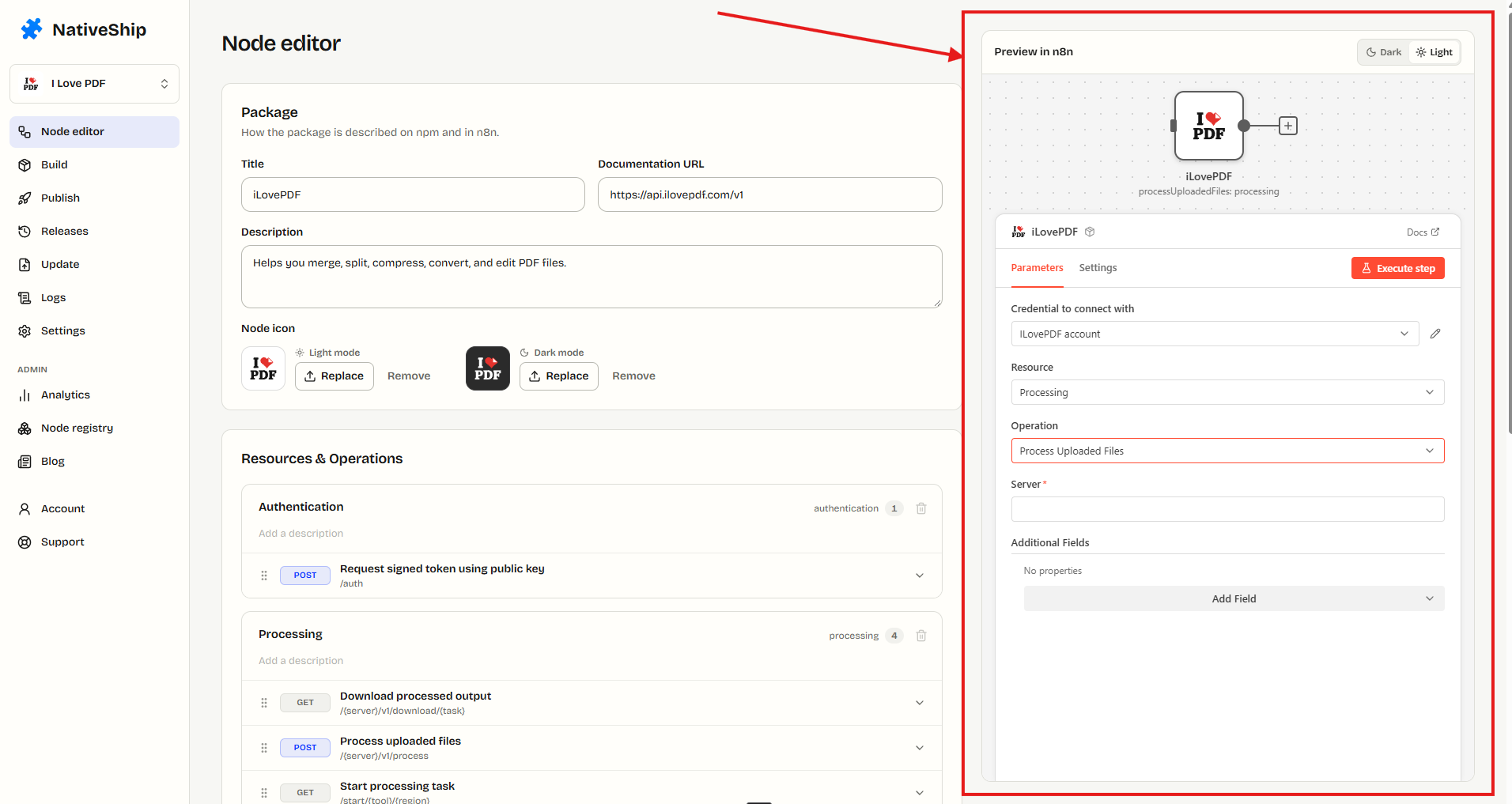
Review Preview in n8n beside the editor. It shows how the current node setup will look in n8n. Switch between Light and Dark themes and check:
- The title and description are readable.
- The Docs link opens the intended documentation page.
- Resource and operation names make sense.
- Required fields are obvious.
- Tooltips, placeholders, and hints are helpful.
- The icon is visible in each theme.
The preview is a layout review. It does not make a live API request or prove that an operation works.
4. Check the package name and build
Before building, check the package details you intend to publish:
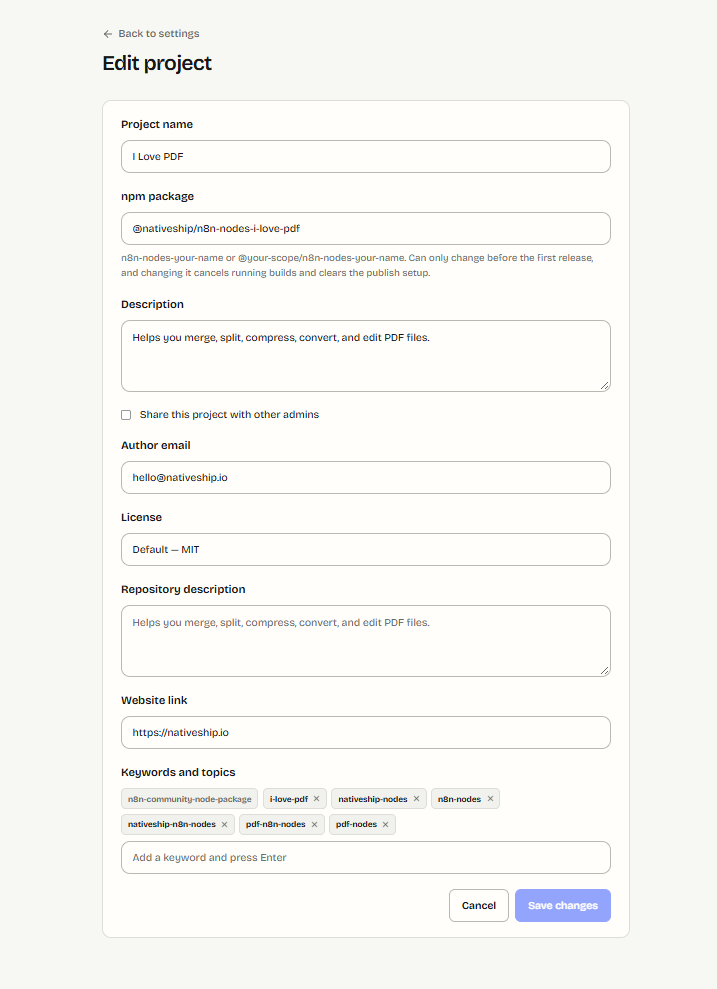
- The package name follows n8n's n8n-nodes- or @scope/n8n-nodes- format.
- The package name is the one your company or team will maintain.
- The n8n-community-node-package keyword is present.
- The author email, license, keywords, website link, and repository description are correct.
Then:
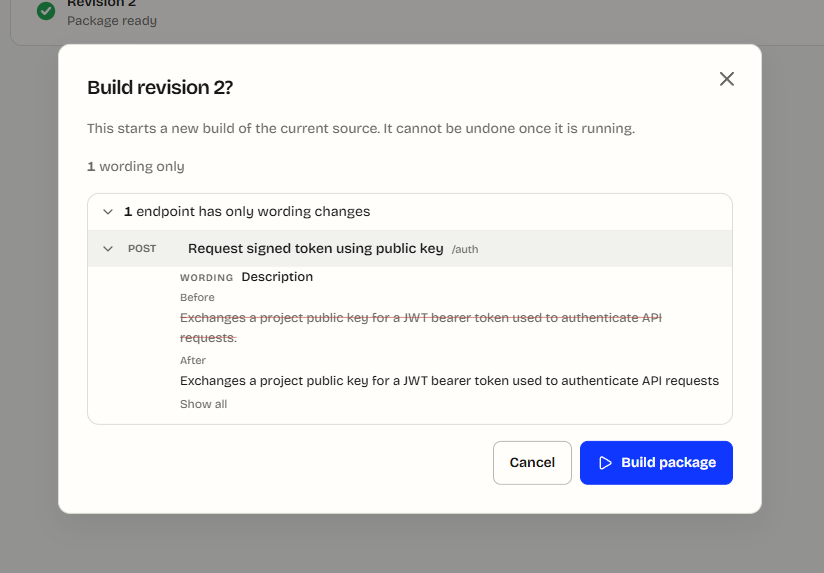
- Open Build.
- Select Build package.
- Wait for the build to finish. A NativeShip build usually takes around 3-5 minutes; use the app's final status as the confirmation that it is ready.
- Read every check and warning. A passed build confirms the checks NativeShip reports; it does not confirm a successful API call or n8n verification.
The NativeShip 0mcp build record reviewed for this guide shows revision 3 of @nativeship/n8n-nodes-0mcp completed with five of five checks passed: dependency lock, dependency installation, compile, lint, and request validation.
The same report flags 16 operations that remain single-page without a bounded pagination contract: listNotes, getBotTrafficPages, getBrowserAnalytics, getCampaignAnalytics, getCityAnalytics, getCountryAnalytics, getDeviceAnalytics, getExitClickAnalytics, getGoalProperties, getHostnameAnalytics, getOperatingSystemAnalytics, getPageAnalytics, getReferrerAnalytics, getRegionAnalytics, listMentions, and listVisitors. getAnalyticsOverview is not among those warnings. If a workflow depends on every page of a list, resolve and test pagination before publishing.
Troubleshooting
An operation is missing in n8n
Return to Resources & Operations and check whether the operation was left out or deleted. Restore it or include it, save the changes, and build the updated package.
The node name or Docs link looks wrong
Edit Title, Description, or Documentation URL in Node labels, save the changes, build the package, and publish the updated release. The editor remains available after publication.
A required field is not clear
Open that operation and expand Input Field guidance. Improve its tooltip, placeholder, or hint, then review the result in Preview in n8n.
The build finishes but the result seems incomplete
Read the build diagnostics for that operation. A single-page warning means the build report did not establish that later pages are fetched. Check the API's pagination rules and test the full result before using the operation for a complete dataset.
The package does not load in local n8n
Follow the README for the exact package you built and n8n's current installation instructions for your deployment. A Docker, global npm, and local development setup can use different installation steps. If the archive or README is missing, get that exact build artifact before copying commands from another package.
npm publishing or trusted publishing fails
Go back to the NativeShip Publish page and read its current status, alert, and per-step hint. Use only the commands shown for this project. If a repository or package setup is wrong after a publishing step has created it, use a Change control only where the page provides one, or contact NativeShip support before repeating the setup.
6. Publish from NativeShip
Publishing setup connects the project to a GitHub repository and an npm package. Treat the first setup as a one-time process: confirm the account owner, repository, package name, author email, and license before continuing. NativeShip's app provides step-specific instructions. Follow those instructions in order.
Complete the one-time GitHub and npm setup
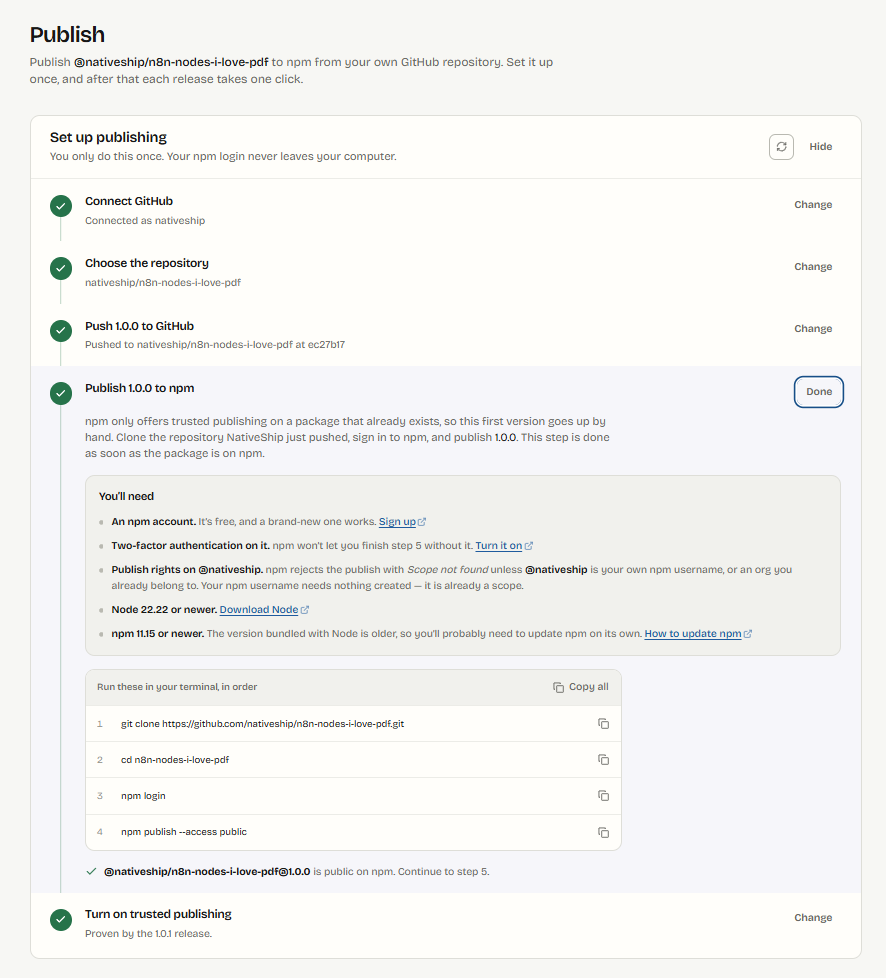
- Open Publish after the build is ready.
- Read each alert and hint on the page before acting. Check that the package name and company account are correct.
- Select Connect GitHub and connect the company GitHub account that should own the repository.
- Choose or create the repository in the GitHub account you selected. Confirm the repository owner and name before NativeShip pushes the package code.
- Prepare the company npm account that should own the package. Turn on two-factor authentication before publishing. npm currently requires two-factor authentication or a granular access token configured to bypass it for package creation and publishing; check npm's current policy and follow the NativeShip flow for the account you are using.
- In the NativeShip Publish steps, copy the terminal commands from the page and run them one at a time, in order. Do not substitute commands from another guide. These steps pull the GitHub repository to your computer and perform the first npm publication manually as part of NativeShip's security-focused setup.
- Wait about 10-15 minutes for npm and the publishing status to update, then refresh the NativeShip Publish page.
- When NativeShip shows the next step, copy the final command from that page and run it in your terminal. This completes the trusted-publishing setup for later GitHub Actions releases.
- Check the Publish page until it confirms setup is complete.
Check the provenance before requesting n8n verification
The first npm publication in NativeShip's setup is manual. n8n's current Creator Portal rules require the version submitted for verification to be published from GitHub Actions with an npm provenance statement. Wait until a later GitHub Actions release has provenance, and check that exact npm version before submitting it. npm describes provenance as a verifiable record linking the published package to its source repository and build workflow.
7. Request n8n verification
An npm release and an n8n-verified node are different outcomes. Verified nodes can appear in n8n's node panel across Cloud and self-hosted deployments when the instance enables them. n8n reviews submissions and can reject them; NativeShip cannot approve a node on n8n's behalf. See n8n's verified-node guidelines.
To request verification:
- Confirm the package name starts with n8n-nodes- or @scope/n8n-nodes-.
- Confirm the npm package keywords include n8n-community-node-package.
- Confirm the package metadata lists its node and credentials in the n8n field.
- Review the generated package against n8n's current technical and UX guidance. Its verification guidelines specify an MIT license, no external runtime dependencies, a public GitHub repository whose URL matches the npm package, matching author or maintainer details, and package documentation. Choose MIT only if your rights and company policy allow it.
- Confirm the version you intend to submit was published from GitHub Actions with provenance.
- Submit through the n8n Creator Portal and wait for n8n's review.
As of the official n8n documentation checked on 13 October 2026, its verification guidelines say community nodes must be published from GitHub Actions with provenance from 1 May 2026; its submission guide states that this is required for Creator Portal submissions. Treat NativeShip's initial manual npm upload as a publishing-setup step, not as proof that this version has provenance. Wait for a later GitHub Actions release, check provenance on that exact npm version, and submit that version. n8n performs the final vetting. Passing NativeShip's build checks or publishing to npm does not mean n8n has verified the node.
For the full Creator Portal steps checklist, see How to Submit an n8n Community Node for Verification.
On local or self-hosted n8n, follow the current n8n private-node installation instructions for your environment. For the built-in verified-node catalog, n8n says instance owners or admins install verified community nodes; the instance's members can then use them. See Install verified community nodes.